Set up Lenscord
You need an iPhone with iOS 17.4 or later, a Mac with macOS 14 or later, and a USB cable that carries data.
On your Mac
- Move Lenscord to your Applications folder and open it. Its panel opens as a window, and a camera icon appears in the menu bar; click the icon to open the same panel later.
- Tick Open at login in the panel so Lenscord is ready whenever you are.
On your iPhone
- Install Lenscord for iPhone. It’s in private testing on TestFlight now; public downloads come at launch.
- Plug the iPhone into your Mac with a USB cable that carries data. Unlock it and tap Trust if it asks.
- Open Lenscord, tap Start camera and allow camera access. Hold the phone sideways so the screen reads upright, with the top of the phone on the left.
Pair them once
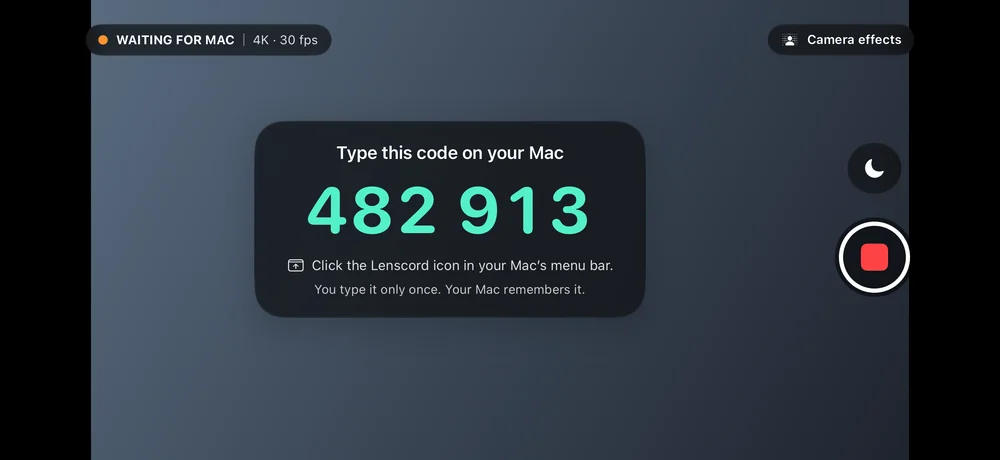
Type the 6-digit code shown on the iPhone into the Lenscord panel on your Mac. The panel connects after the sixth digit and remembers the code, so next time it reconnects by itself. The iPhone keeps the same code until you tap New code. Once your Mac has the code, the iPhone says Paired with your Mac. Open OBS to go live. until OBS connects.
Add Lenscord to OBS
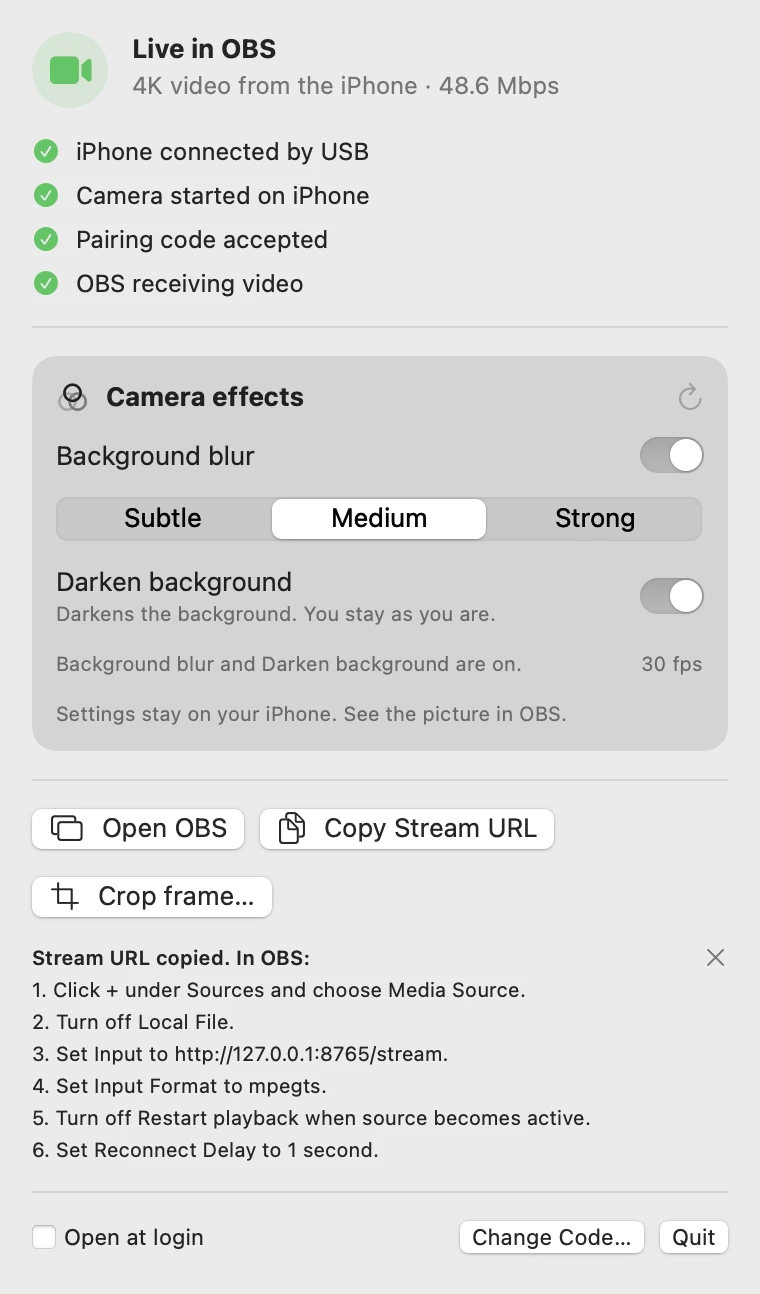
If the panel says Next: add Lenscord to OBS, click Set Up OBS…. It copies the stream address, opens OBS and lists these steps.
- In the Sources panel, click +, choose Media Source and give it a name, for example iPhone.
- Turn off Local File.
- Set Input to the stream address below. The Copy Stream URL button in the Lenscord panel copies it for you.
- Set Input Format to
mpegts. - Turn off Restart playback when source becomes active, and Close file when inactive if you see it, so switching scenes doesn’t drop the camera.
- Lower Reconnect Delay from its default of 10 seconds to 1 second, so OBS picks the camera back up a second after Lenscord resumes.
- For 4K recordings, open Settings, then Video, and set Base (Canvas) Resolution and Output (Scaled) Resolution to 3840x2160 and the frame rate to match Lenscord’s (30 unless you chose another in camera controls). Then right-click the source and choose Transform, then Fit to screen.
http://127.0.0.1:8765/stream
Lenscord sends video only. Keep your microphone as an audio source in OBS.
Camera controls
While the camera runs, use the Camera card in the Lenscord panel on your Mac, or open Camera effects on the iPhone and use its Camera section. Both change the same settings.
- Lens: ultra wide, wide or telephoto, wherever your iPhone films native 4K with it. Telephoto is on Pro models.
- Frame rate: 24, 25, 30 or 60 fps. Camera effects pause at 60 fps; choose 30 or lower to use them. Set OBS’s frame rate to match.
- Zoom up to 3x.
- Lock exposure and Brightness, Lock focus, and White balance: Auto, Daylight, Cloudy, Tungsten, Fluorescent, or Locked to hold the current colour.
Lenscord keeps your lens, frame rate and zoom. Locks, brightness and white balance go back to auto each time the camera starts, because the light may have changed. A lock symbol on the iPhone shows what is locked.
Camera effects
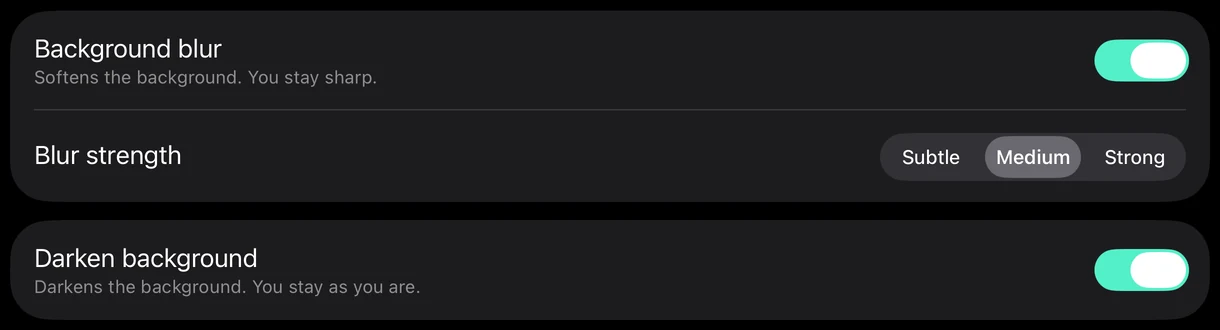
Lenscord has two background effects. Use either one, or both together:
- Background blur softens the background while you stay sharp. Choose Subtle, Medium or Strong.
- Darken background darkens the background. You stay as you are.
Turn them on with the Camera effects button on the iPhone, or in the Camera effects card in the Lenscord panel on your Mac while the iPhone camera is running. Both change the same settings, which are saved on the iPhone. The iPhone applies the effects to the video it sends, so you see them in OBS; the preview on the phone stays as it is. If the phone gets very hot, the effects pause and OBS shows the original picture until the phone cools down.
Backup takes
A backup take is a full-quality copy of your video saved on the iPhone while it streams: a safety net if OBS or your Mac has a problem. It is the same picture OBS gets, effects included, with no sound (OBS records your Mac’s microphone).
- Turn on Back up takes on this iPhone in Camera effects, or Back up takes on the iPhone in the Backup card on your Mac. With OBS’s WebSocket server on, Lenscord for Mac then starts a take when OBS starts recording and stops it when OBS stops. You can also tap Start backup and Stop backup yourself.
- While a take records, a red BACKUP timer shows on the iPhone. Takes are saved as they record, so if something crashes, the take still plays up to its last few seconds.
- A take stops by itself if you leave Lenscord, a call or another app takes the camera, or less than 2 GB is free, and Lenscord says why.
- To copy takes to your Mac, click Import takes… in the Backup card. They are saved in Movies › Lenscord, and an interrupted import resumes where it stopped. Delete from iPhone after import is off unless you turn it on.
- On the iPhone, open Takes to play, share (for example with AirDrop) or delete a take. Takes are also in the Files app (On My iPhone › Lenscord › Takes) and in Finder when the iPhone is connected (your iPhone › Files › Lenscord).
- Takes stay on your devices, are left out of iCloud device backups, and leave the iPhone only when you import or share them. Delete takes you no longer need: 4K video takes a lot of space.
Teleprompter
Teleprompter… in the Lenscord panel on your Mac opens a window that floats above your other windows, including OBS. Paste your script, or open or drop a .txt, .md, .rtf or .docx file. Click Move under camera to place it right under your camera.
- Fixed speed scrolls at the speed you set.
- Follow my voice scrolls as you read: words you’ve read dim and the current word is marked. Pick your language and microphone. For Hinglish, choose English (India). Your speech is recognised on your Mac and never sent anywhere. If your Mac can’t recognise a language on the device, Lenscord tells you how to add it in Keyboard settings instead of sending your voice elsewhere. The microphone is used only in this mode.
Shortcuts that work from any app, including while OBS is in front:
- ⌃⌥⌘Space start or pause
- ⌃⌥⌘↑ ⌃⌥⌘↓ scroll faster or slower
- ⌃⌥⌘R back to the top
While the teleprompter window is in front, a presentation clicker’s arrow and Page Up/Page Down keys move a line.
Lenscord asks macOS to keep the teleprompter window out of screen sharing and screen recordings. Apps that respect that request leave it out, but not every app or capture method does, so check before you rely on it.
Make vertical
Make vertical… in the Lenscord panel turns a landscape OBS recording or an imported take into a 9:16 video for Shorts, Reels and TikTok. Choose or drop a video and click Make Vertical. With Follow face on, the crop follows your face; with it off, it stays centred. From a 4K recording you get 1080 × 1920. The vertical copy is saved next to the original as an MP4 with the original sound. Everything runs on your Mac.
OBS’s MKV recordings can’t be opened: in OBS, set the recording format to MP4 under Settings › Output.
Crop frame in OBS
Crop frame… in the Lenscord panel opens a window that changes how the camera is framed in your OBS scene. It talks to OBS through OBS’s WebSocket server, so turn that on first.
Turn on the OBS WebSocket server
- In OBS, choose Tools, then WebSocket Server Settings.
- Turn on Enable WebSocket server and click Apply.
- Keep Enable Authentication on. Lenscord reads the password from OBS’s settings on your Mac, so you never type it.
Crop frame: Rectangle
- In OBS, switch to the scene with your Lenscord camera. Then click Crop frame… in the Lenscord panel. The window opens on Rectangle, with a still snapshot of the camera. Click Refresh snapshot for a newer one.
- Click Draw new crop and drag over the area you want, or move the current selection and drag its corners. The arrow keys move it, and + and - resize it. Retained pixels shows how much of the 4K picture you keep.
- Click Apply crop. If OBS is recording or streaming, Lenscord asks first, because the change shows in the recording. A camera that fills the canvas keeps filling it; a smaller camera, such as a picture-in-picture, keeps its place and size.
- To go back, click Undo crop. Before you apply, ⌘Z undoes your last change to the draft, and closing the window asks before it throws a draft away.
Crop frame: Pencil (Beta)
Pencil keeps the area inside a freehand outline and makes everything outside it black, for example to hide a busy corner of the room. The outline stays fixed in the frame and doesn’t follow you.
- Choose Pencil (Beta) in the Crop frame window. If your camera was placed with Fit to screen, click Fit camera to canvas once; the picture stays the same.
- Drag around the area you want to keep. The outline closes when you let go. Drag inside it to move it, and set Edge softness.
- Click Apply outline. Remove outline hides it again, and Undo outline puts back the earlier state.
- To take Lenscord’s outline layers out of OBS completely, choose Remove Lenscord outline layers… in the ⋯ menu.
Pencil saves its outline images in ~/Library/Application Support/Lenscord/OBS Masks, and OBS needs them while an outline shows. Remove the outline layers before you delete that folder.
If something isn’t working
Start with what the Lenscord panel on your Mac says.
| The panel says | What to do |
|---|---|
| Plug in your iPhone | Use a cable that carries data, unlock the iPhone and tap Trust when asked. If nothing changes, try another cable or port; some charging-only cables don’t carry data. |
| Reading the saved code… | Lenscord is reading the pairing code it saved in your keychain. If macOS asks to use your keychain, choose Always Allow. You can also type the code shown on the iPhone. |
| Enter the pairing code | Open Lenscord on the iPhone, tap Start camera and type the 6-digit code it shows. |
| That code didn’t match | Check the 6 digits on the iPhone screen and type them again. If you were changing a code that worked, Cancel goes back to it. |
| The phone has a new code | The code on the iPhone has changed, for example after New code. Type the code the iPhone shows now. |
| Too many wrong codes | After five different wrong codes, the iPhone refuses codes for 30 seconds, and longer if it happens again, up to 5 minutes. The panel counts down. When it reaches zero, type the code shown on the iPhone. |
| Waiting for the iPhone camera | Open Lenscord on the iPhone and tap Start camera, or Resume camera if Lenscord was closed. If you locked the phone or opened another app, go back to Lenscord: it resumes by itself, and OBS reconnects after its Reconnect Delay. |
| Phone stream is busy | The iPhone is still finishing an earlier connection, and Lenscord retries every few seconds. If this doesn’t go away, tap Stop and then Start camera on the iPhone. |
| Next: add Lenscord to OBS | OBS has no Lenscord source yet. Click Set Up OBS… and follow the steps in Add Lenscord to OBS. |
| Bridge stopped | Another program is using the Lenscord address (port 8765). Quit other copies of Lenscord, including the older LensBridge helper if you used it, then click Restart Bridge. |
| Ready for OBS, but OBS shows nothing | Check the Media Source settings: Local File off, Input http://127.0.0.1:8765/stream, Input Format mpegts. OBS retries on its own after the Reconnect Delay. |
| A message about your keychain, with an error number | macOS didn’t let Lenscord read or save its pairing code. If your keychain is locked, unlock it. Then click Try Again and choose Always Allow if macOS asks, or type the code shown on the iPhone. |
| Another OBS source asked for the camera and was turned away | Only one OBS source can show Lenscord at a time. To use the camera in several scenes, add the same source to each scene instead of making a new Media Source. |
Messages in the Crop frame window
| The window says | What to do |
|---|---|
| OBS isn’t open | Open OBS, then click Refresh snapshot. |
| The OBS WebSocket server is off or isn’t answering, or Lenscord can’t find its settings | Turn on the WebSocket server and click Apply in OBS. Then click Refresh snapshot. |
| OBS didn’t accept the WebSocket password, or its saved settings don’t match | In OBS, open Tools, then WebSocket Server Settings, and click Apply so OBS saves its settings. Then try again. |
| OBS’s WebSocket password is off | Turn on Enable Authentication in the same settings. Without it, other devices on your network can control OBS. |
| Switch to the scene with the Lenscord camera | In OBS, choose the scene that has your Lenscord Media Source, make sure the source is visible, and click Refresh snapshot. |
| The OBS scene or camera changed since this snapshot | Click Refresh snapshot, then apply again. Your draft is kept. |
| OBS can’t enlarge a crop this small | Choose a larger area. The message gives the smallest width OBS accepts. |
| The camera doesn’t fill the canvas | For Pencil, click Fit camera to canvas, or switch to Rectangle and click Apply crop once. For a smaller camera, such as a picture-in-picture, right-click it in OBS, choose Transform, then Fit to screen, and refresh the snapshot. |
| The outline layer changed in OBS, is in another scene, or its files changed | Follow the steps in the message. If that doesn’t help, choose Remove Lenscord outline layers… in the ⋯ menu and draw the outline again. |
The menu bar icon is missing
On MacBooks with a notch, macOS hides menu bar icons that don’t fit, starting with the most recently added. Opening OBS adds its own icon, which can push Lenscord out of sight. Lenscord keeps working while it’s hidden.
- Open Lenscord again from Spotlight or your Applications folder. The same panel appears as a window.
- To keep the icon visible, hold Command (⌘) and drag it toward the clock, or turn off the OBS icon in OBS Settings, General, System Tray.
The picture is sideways or upside down
Hold the iPhone sideways so the Lenscord screen reads upright, with the top of the phone on the left. The picture is always sent in that orientation. In OBS, right-click the source and choose Transform, then Fit to screen.
The phone gets warm
Long 4K sessions make the iPhone work hard, and camera effects add to that. Tap the moon button to black out the screen while the video keeps flowing, and give the phone some air. When Lenscord shows Phone is hot, tap it for what helps: dimming the screen and, if they are on, turning off effects. If the phone gets very hot, effects pause by themselves until it cools down.
Known limits
- Today Lenscord appears in OBS as a Media Source. A system camera for Zoom, Google Meet, FaceTime, QuickTime and OBS is coming in the next update; until then, OBS’s Start Virtual Camera can pass your OBS scene to those apps.
- Rear cameras only, at native 3840 × 2160 and 24, 25, 30 or 60 fps where the lens offers it, with a fixed landscape orientation. Camera effects pause at 60 fps.
- Video only, in the stream and in backup takes; sound comes from your Mac’s microphone in OBS.
- Lenscord must stay on screen on the iPhone while it streams. If a phone call or another app interrupts it, it picks up again when you return to Lenscord.
- Camera effects show in OBS, not in the preview on the iPhone.
- Crop frame needs OBS’s WebSocket server. Pencil is in beta.
- One iPhone at a time, over USB, with a Mac. There’s no Wi-Fi mode.
FAQ
Does Lenscord record sound?
No. Lenscord carries video only. Choose your microphone in OBS, or in your call app once the system camera arrives. Make vertical keeps the sound from your original recording.
Can I use it without OBS?
Not yet. Today the video goes into OBS Studio, which is free. The system camera in the next update will let you choose “Lenscord” directly in Zoom, Google Meet, FaceTime and QuickTime.
Why USB and not Wi-Fi?
A cable carries the 4K stream (about 30 Mbps, or 45 at 60 fps) without depending on your Wi-Fi, and the video never travels over your network or the internet.
Does Lenscord collect any data?
No. There are no accounts, analytics or ads. See the privacy policy.
How much will it cost?
The planned launch price is $29 (USD), once, for both apps and the creator tools. No subscription.
Contact support
Include these details so we can help quickly:
- What the Lenscord panel on your Mac says, and any message in the Crop frame window.
- Your iPhone model and iOS version, and your macOS version.
- The text shown at
http://127.0.0.1:8765/healthwhen you open it in a browser on your Mac while Lenscord is running. It contains no images, codes or device identifiers.
Email support opens at launch. Until then, the answers above cover setup and the most common problems.